


一、開發板簡介
FRDM-IMX91 是由 NXP 推出的低成本開發板,搭載 i.MX 91 應用處理器,適用於智慧家庭、工業自動化與物聯網應用。本板支援 Wi-Fi 6、藍牙 LE 5.4、802.15.4(Thread/Zigbee),並具備豐富的 I/O 接口與 Linux 作業系統支援。
二、硬體元件與規格介紹
主要硬體元件與規格如下:
● 處理器:NXP i.MX 91(ARM Cortex-A55 @ 1.4GHz)
● 安全性:EdgeLock® Secure Enclave
● 記憶體:1GB LPDDR4、8GB eMMC 5.1、microSD 插槽
● 音訊:3.5mm 耳機插孔(MQS 支援)
● 無線模組:u-blox MAYA-W476(Wi-Fi 6、Bluetooth LE 5.4、802.15.4)
● 顯示與攝影機介面:40-pin RGB LCD 與 Parallel Camera 接口
● 連接介面:USB 2.0 Type-C / Type-A、雙 GbE RJ45、CAN、I²C、ADC、UART、SWD Debug
● 電源管理:PCA9451A PMIC

i.MX91 FRDM 平台自帶燒寫到eMMC 的預構建NXP Linux images。可先進行板子的測試評估。
可參考NXP 網站:Getting Started with FRDM-IMX91 Development Board
三、編譯 Yocto BSP 映像
如想自行編譯Yocto 映像檔,可參考以下步驟在 Linux Ubuntu20.04 主機上編譯:
- 安裝必要套件:
$ sudo apt install gawk wget git diffstat unzip texinfo gcc build-essential chrpath socat cpio python3 python3-pip python3-pexpect xz-utils debianutils iputils-ping python3-git python3-jinja2 python3-subunit zstd liblz4-tool file locales libacl1
設置Repo實用程序:安裝 repo,並加入 PATH 中
$ mkdir ~/bin
$ curl https://storage.googleapis.com/git-repo-downloads/repo > ~/bin/repo
$ chmod a+x ~/bin/repo
$ export PATH=~/bin:$PATH
Yocto Project 建立
使用如下的命令確認git設定。
$ git config --global user.name "Your Name"
$ git config --global user.email "Your Email"
$ git config --list
- 接下來使用如下步驟下載i.MX Yocto Project BSP recipe layer and i.MX FRDM layer
$ mkdir imx-yocto-bsp
$ cd imx-yocto-bsp
$ repo init -u https://github.com/nxp-imx/imx-manifest -b imx-linux-scarthgap -m imx-6.6.36-2.1.0.xml
$ repo sync
這個步驟完成後,源代碼的目錄會位於 imx-yocto-bsp/sources,接下來進行 build image 的動作。
定期使用repo sync 命令更新至最新的程式碼。如果在repo init 過程中出現錯誤,請嘗試刪除.repo, 再重新做repo init.
- 整合i.MX FRDM layer 到i.MX Yocto Project
$: cd ${MY_YOCTO}/sources
$: git clone https://github.com/nxp-imx-support/meta-imx-frdm.git
$: cd meta-imx-frdm
$: git checkout imx-frdm-4.0
構建Images
使用〝imx-frdm-setup.sh"這個 script,並賦予特定待建構的machine 名稱,即可快速建構其相關環境。
$EULA=1 MACHINE=imx91frdm DISTRO=fsl-imx-xwayland source sources/meta-imx-frdm/tools/imx-frdm-setup.sh -b frdm-imx91
此步驟需要一些時間把環境建置完成。建置完成後會在目錄下產出 frdm-imx91資料夾。
- 開始編譯映像檔:
bitbake imx-image-full
四、燒錄映像至開發板
1. 設定開機模式為 Serial Downloader:
SW1[1:4] 調整到Serial donwload ON OFF OFF OFF
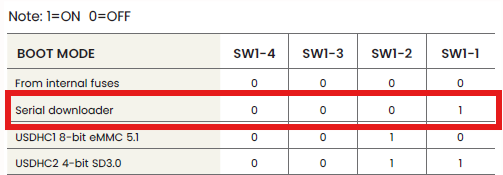
2. 使用 USB Type-C 連接開發板與主機
3. 安裝 uuu 工具:https://github.com/NXPmicro/mfgtools/releases
4. 執行燒錄指令:
sudo uuu -b emmc_all imx-boot-imx91frdm-sd.bin-flash_singleboot imx-image-full-imx91frdm.rootfs.wic.zst
5. 燒錄完成後,切換回 eMMC 開機模式,SW1[1:4] = OFF ON OFF OFF 接上USB debug port 確認開機是否正常。
參考文件:
參考來源